The nitty-gritty

Your app, no app store needed

Your Lorentz app is a Progressive Web App, or PWA. It's a real app that installs straight from a link, so it's on your phone in under a minute and always up to date.

PWA vs app store

Why we build your app this way

It opens full screen from its own icon on your home screen, just like any other app. The difference is everything that happens behind the scenes.

Your Lorentz app (PWA)
App store app
Getting it
✓
Tap a link and add it to your home screen
Search a store, sign in, download
Updates
✓
Automatic, so you always have the latest version
Wait for store approval, then download each update
Works on
✓
iPhone, Android, tablet and laptop, from one app
Separate versions for each type of device
Phone storage
✓
Takes up very little space
Often a large download
Your branding
✓
Your logo and name on the home screen icon
Usually the software company's brand
No signal
✓
Today's jobs and notes keep working in a black spot
Depends on the app
Ready to use
✓
The day we hand it over
After store review, which can take days

So when would an app store app make sense?

Mostly for things like big games or apps that need deep access to your phone's hardware. Running a trade business doesn't need any of that, so a PWA gives you all the app you need with none of the app store hassle.

How to install

On your phone in under a minute

Pick your device and follow three quick steps.

01

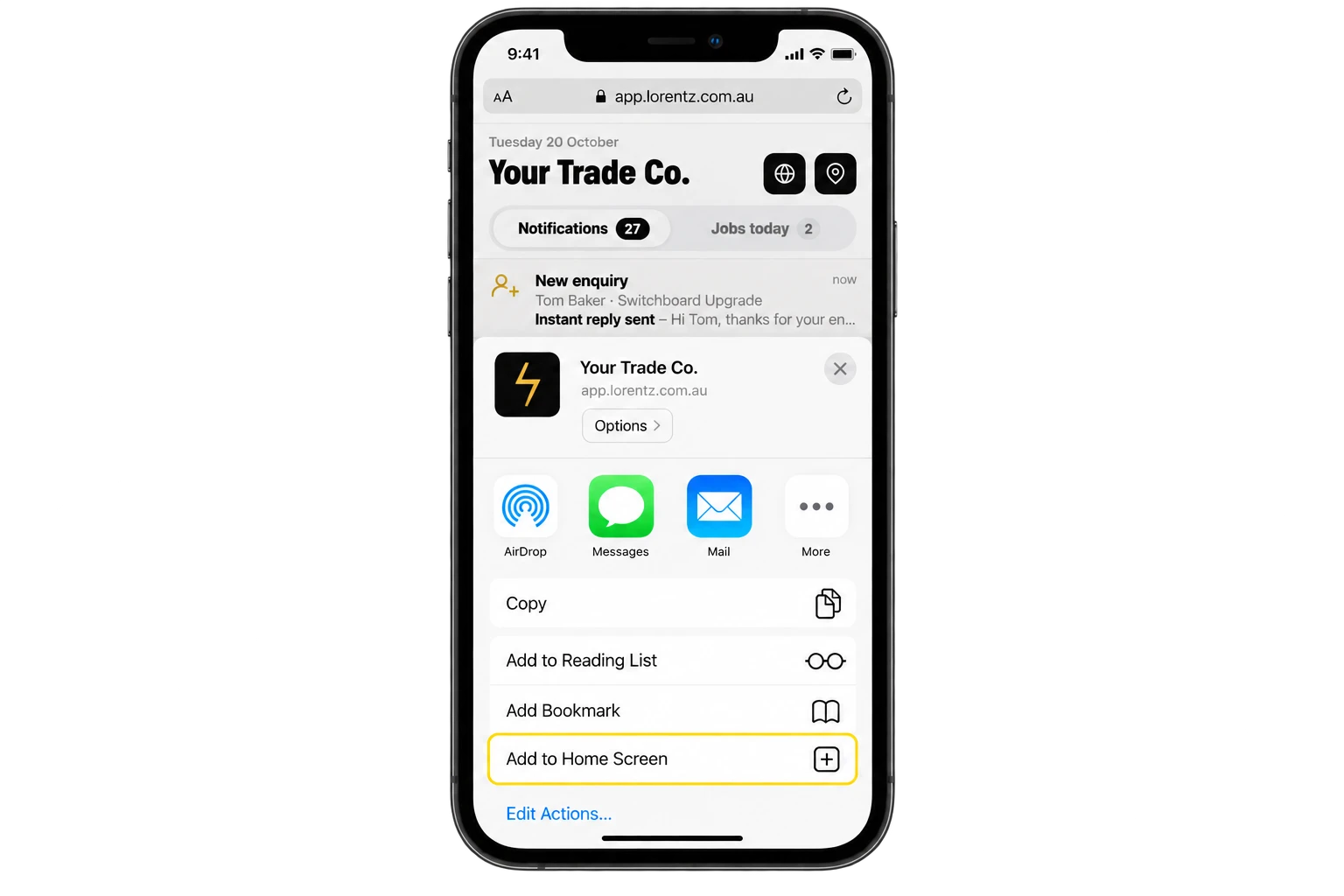
iPhone and iPad

Install from Safari in under a minute.

Step 1.
Open your app link in Safari.
Step 2.
Tap the Share button (the square with the arrow pointing up).
Step 3.
Scroll down, tap Add to Home Screen, then tap Add.
02

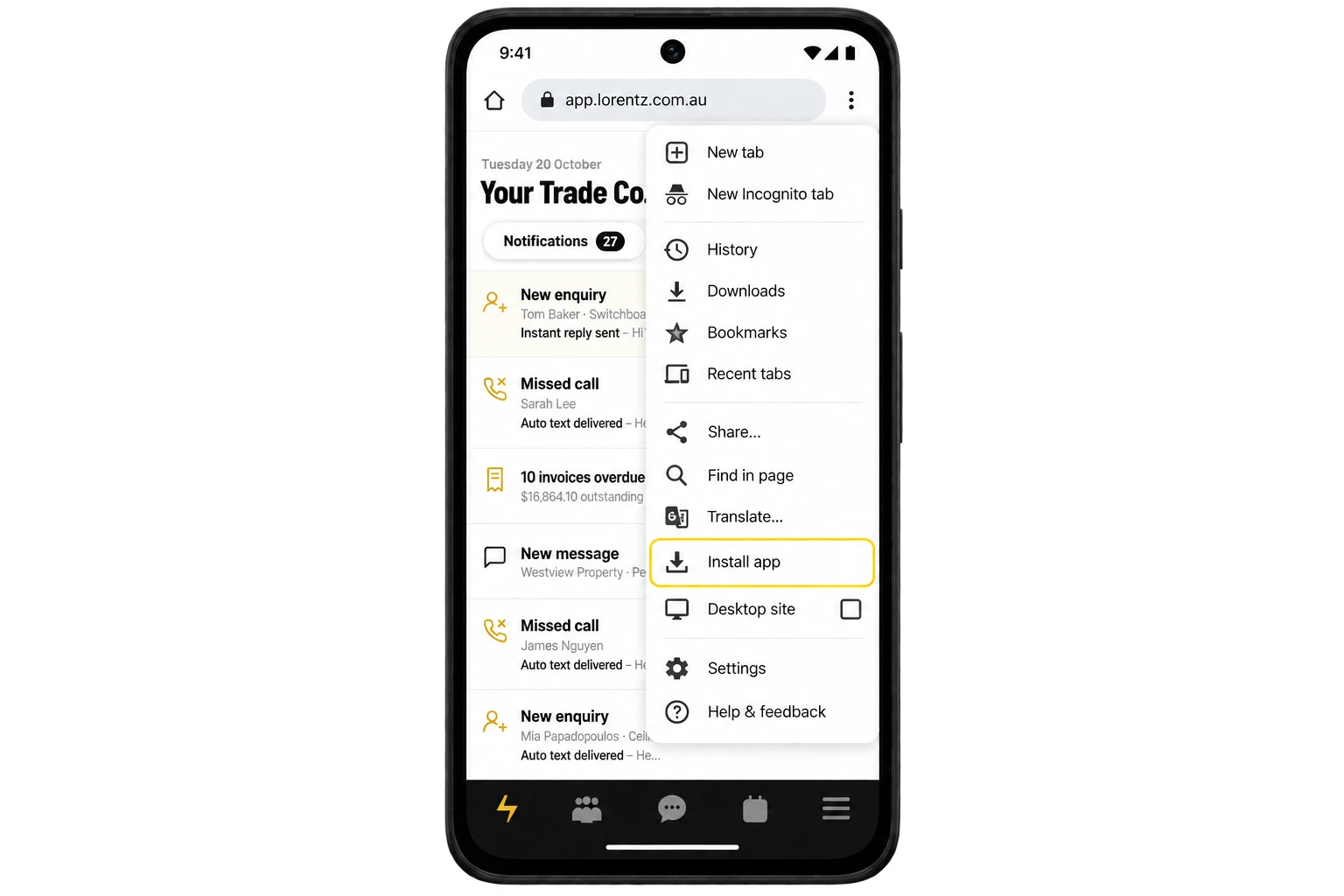
Android

Install from Chrome in under a minute.

Step 1.
Open your app link in Chrome.
Step 2.
Tap the three-dot menu in the top corner.
Step 3.
Tap Install app or Add to Home screen, then confirm.
03

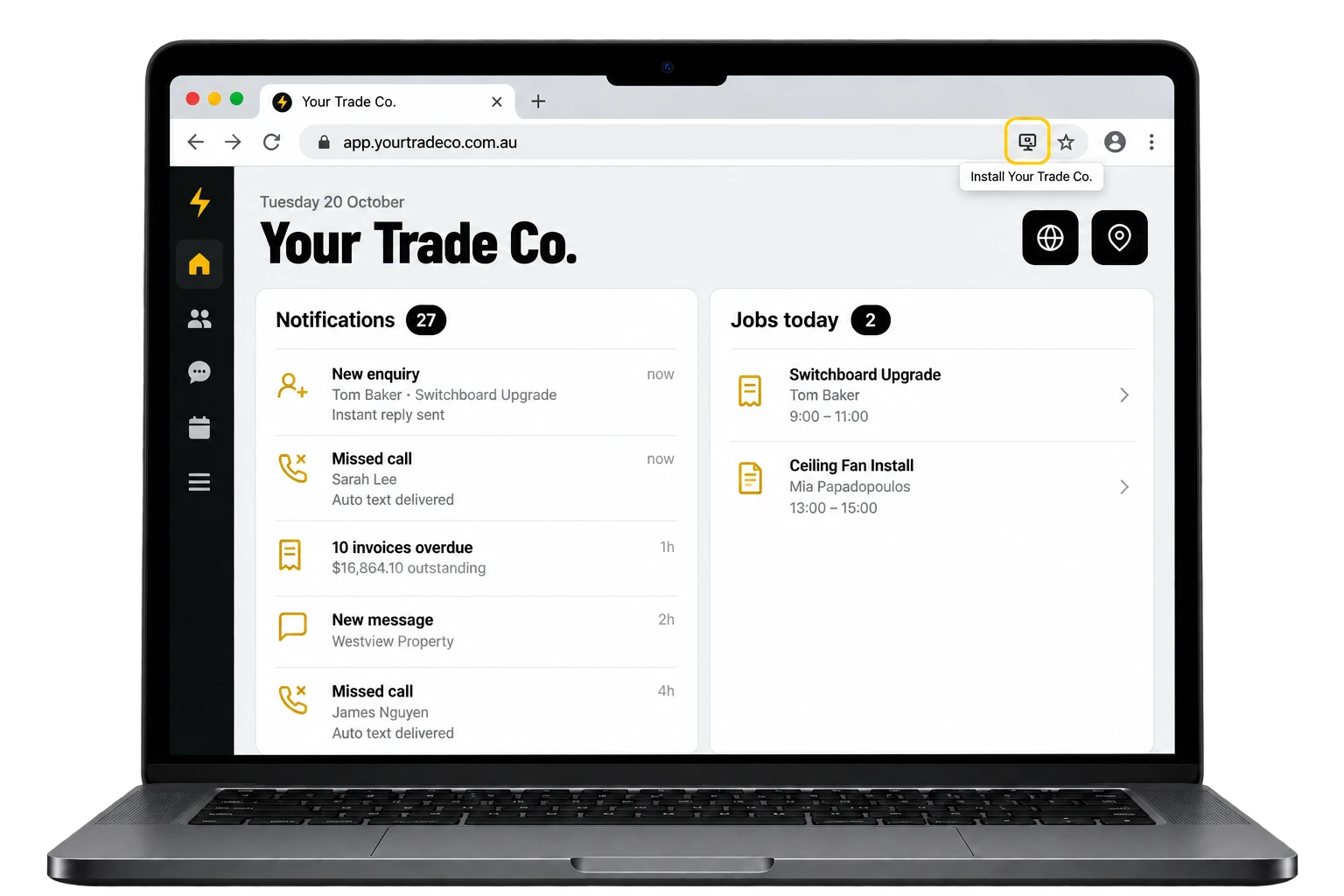
Laptop and desktop

Install from Chrome or Edge so it opens in its own window.

Step 1.
Open your app link in Chrome or Edge.
Step 2.
Click the install icon at the right-hand end of the address bar.
Step 3.
Click Install. Your app now has its own icon and window.

Want to try it on your phone?

We'll build a free mockup of your app with your branding, so you can install it and see it for yourself.